Using FABulous in GitHub Codespaces
GitHub Codespaces provides a complete, cloud-based development environment for FABulous with full GUI support through a web browser. This eliminates the need for local installation and works on any platform.
Quick Start
Navigate to the FABulous repository on GitHub
Click the green “Code” button
Select the “Codespaces” tab
When creating a Codespace, make sure to select the correct dev container configuration:
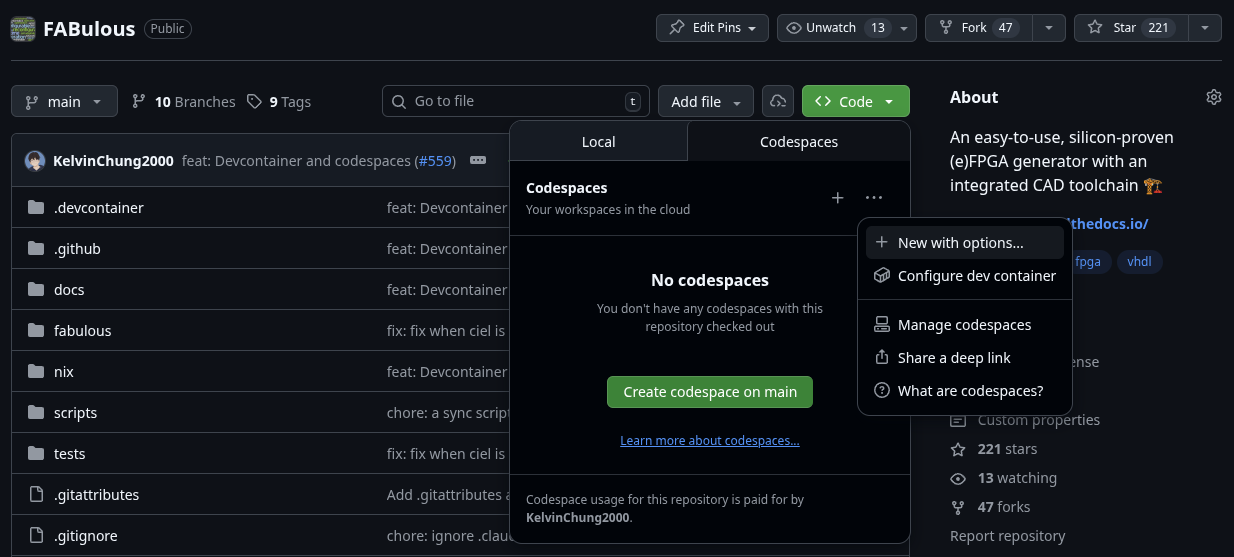
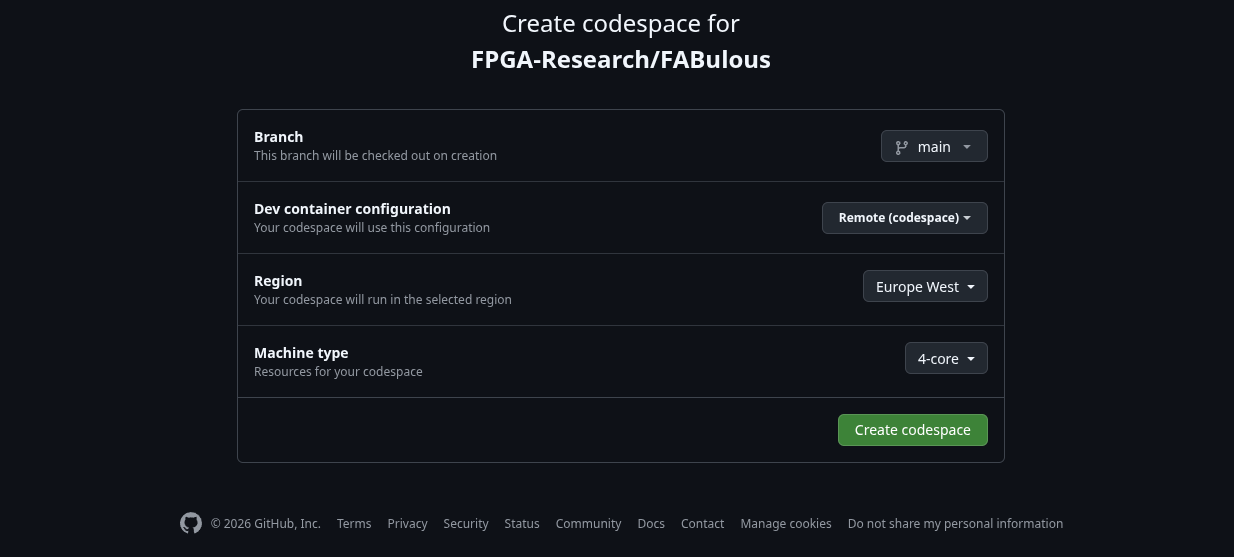
GitHub will automatically create and configure your development environment. The setup process will take a while.
Note
If you don’t see the configuration options, you can change them after creation by rebuilding the container.
Accessing GUI Applications
FABulous includes tools like OpenROAD that have graphical interfaces. In Codespaces, these are accessible through a web-based VNC viewer.
Opening the GUI
In the Ports tab, find port 6080, if the port does not exist click “Add Port” and add port 6080.
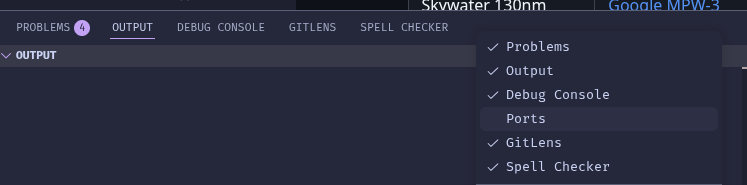

Click the port entry to open it in a browser tab and you should see the following screen, click connect and should bring you to a white window.
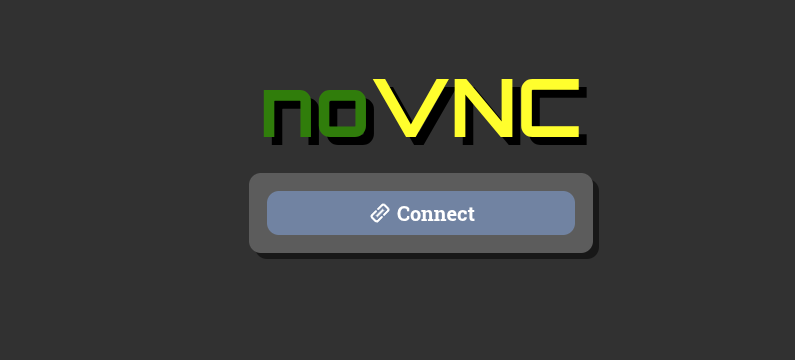
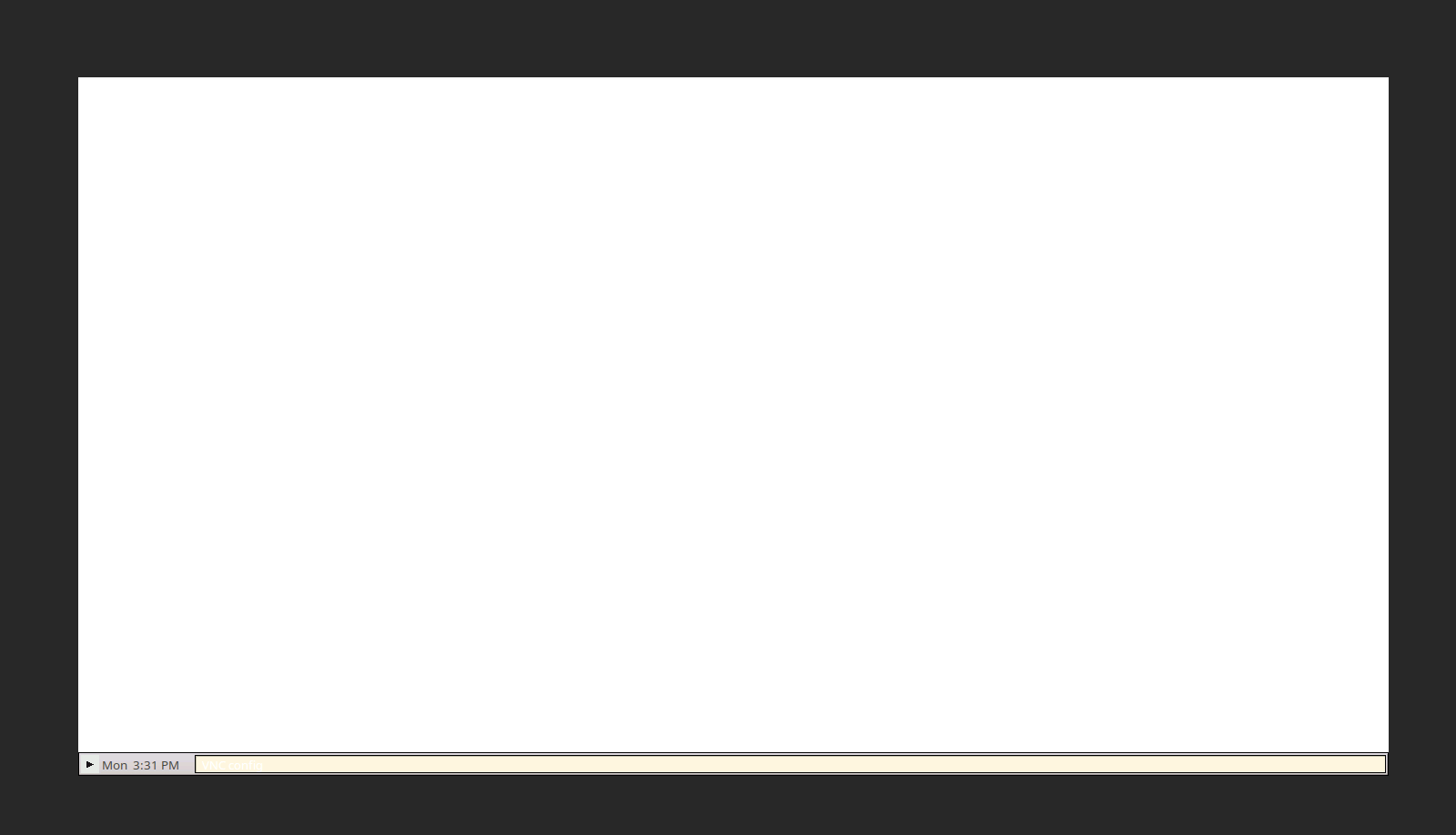 3. You should now see the desktop where FABulous GUI apps can open.

Running FABulous
Once your Codespace is ready, FABulous is pre-installed and ready to use. Open a terminal and verify:
fabulous --version
Creating a Project
fabulous create-project my_project
cd my_project
fabulous start
Inside the FABulous shell:
fabulous>run_FABulous_fabric
fabulous>run_FABulous_bitstream user_design/sequential_16bit_en.v
Using GUI Tools
To use GUI tools like OpenROAD:
Make sure port 6080 is forwarded (see above)
Open the VNC viewer in your browser
Run your GUI command in the terminal:
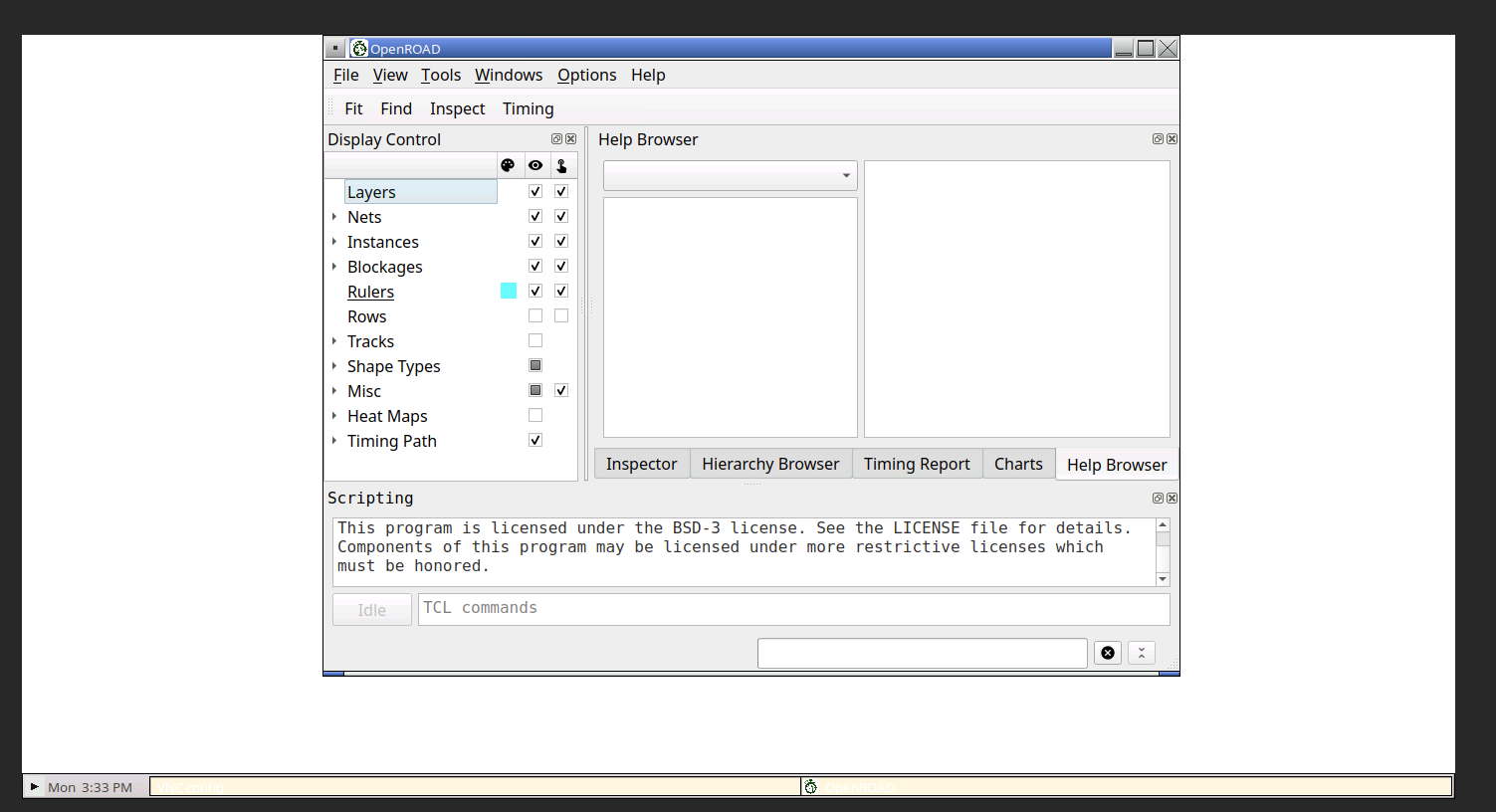
openroad -gui
The GUI will appear in the VNC browser window.
Tips and Troubleshooting
Performance
Codespaces provides 2-4 CPU cores and 8GB RAM by default
For larger designs, you may want to upgrade to a more powerful machine type
Go to Settings → Machine type to change the configuration
Persistence
Your workspace files are automatically saved
Codespaces automatically suspend after 30 minutes of inactivity
Stopped Codespaces are deleted after 30 days of inactivity by default
Running Out of Space
If you encounter disk space issues:
# Check disk usage
df -h

# Clean up Docker resources
docker system prune -a

# Clean Python caches
find . -type d -name __pycache__ -exec rm -r {} +
find . -type f -name "*.pyc" -delete
GUI Not Appearing
If GUI applications don’t show up in the VNC viewer:
Verify port 6080 is forwarded in the Ports tab
Check the terminal for any error messages
Ensure DISPLAY is set correctly:
echo $DISPLAY # Should show :1
Restart the VNC service if needed:
sudo systemctl restart x11vnc
Advantages of Codespaces
No Local Installation: Everything runs in the cloud
Cross-Platform: Works on Windows, macOS, Linux, tablets
Consistent Environment: Same setup for all users
Powerful Hardware: Access to cloud computing resources
GUI Support: Full graphical tools via web browser
Free Tier: GitHub provides 60 hours/month free for personal accounts
Differences from Local Setup
Feature |
Codespaces |
Local Dev Container |
|---|---|---|
Installation |
None required |
Docker + VS Code |
GUI Method |
Web-based VNC (port 6080) |
Native X11 forwarding |
Performance |
Cloud resources |
Local hardware |
Cost |
Free tier then paid |
Free (uses local resources) |
Offline Work |
No |
Yes |
Next Steps
Once your Codespace is set up, continue with the Quick Start Guide to learn how to use FABulous to create FPGA fabrics.